Patients
Manage the patient roster: search, filters, registration, clinical record with tabs, editing, and status control.
Updated on September 21, 2026The patient list
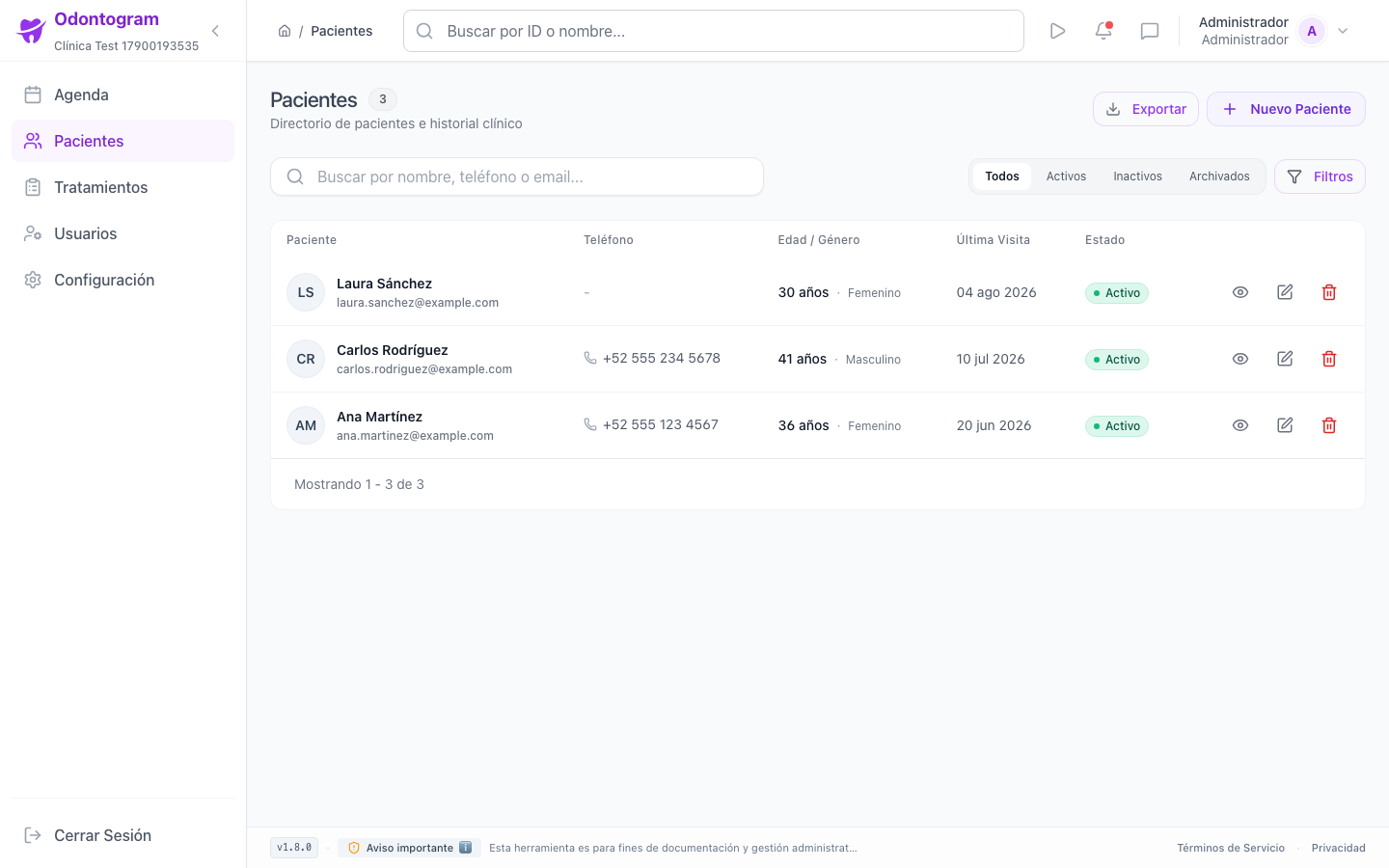
The Patients module (`/patients`) holds the complete roster of the clinic. The table shows the patient, their ID, phone, age/gender, last visit, and status, and includes quick statistics such as total appointments, active plans, and next appointment.
From here you can search, filter, export, and open the record of any patient.
Search and filter patients
The search box accepts the patient ID or name. Quick filters let you switch between All, Active, Inactive, and Archived, and Advanced Filters combine several criteria.
- Status filter: active, inactive, or archived.
- Gender filter: male, female, or other.
- Sort by creation date, first name, last name, or age, in ascending or descending order.
- Pagination with the number of patients shown and previous/next navigation.
Tip
Use Clear Filters to reset the search when you cannot find a patient and avoid forgotten filters.
Register a patient
Registration is done from New Patient (`/patients/new`) and is organized into personal information, contact and address, and record status sections.
- Enter first and last name, which are the minimum identification details.
- Add email, phone, date of birth, and gender.
- Complete the contact address.
- Set the initial status of the record.
- Press Save Patient to create the record.
Information
If you try to leave with unsaved changes, Odontogram shows a warning so you do not lose the information entered.
The patient record
The record (`/patients/<id>`) brings together all clinical information in tabs so you can navigate without changing context.
- Information: personal, contact, and system data, with editing shortcuts.
- Odontogram: current oral status and access to the editor.
- Plans: the patient's treatment plans.
- Appointments: appointment history with date, treatment, doctor, and status.
- Files: documents, X-rays, and studies, with download.
Edit and change status
From the record you can edit the patient's data and change their administrative status. The status controls their visibility in the clinic operation.
- Active: visible in the agenda and in searches.
- Inactive: temporarily paused.
- Archived: hidden from the list and can be reactivated later.
Warning
Deleting a patient is irreversible. If you only need to hide them, archive them instead of deleting.
Export patient data
The module lets you export the patient list to CSV and generate a clinical summary with patient data, metrics (total appointments and attendance rate), and appointment history, useful for reports or backup.
Patients on mobile
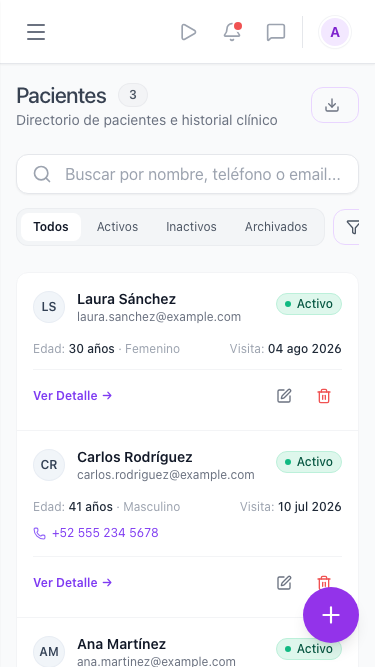
On mobile the list stacks the key information — name, age, last visit, and status — and keeps the search box and quick filters within reach.