Treatment plans
Design plans with treatments, teeth, and surfaces, control their status, and schedule appointments directly from the plan.
Updated on September 21, 2026Plans by patient
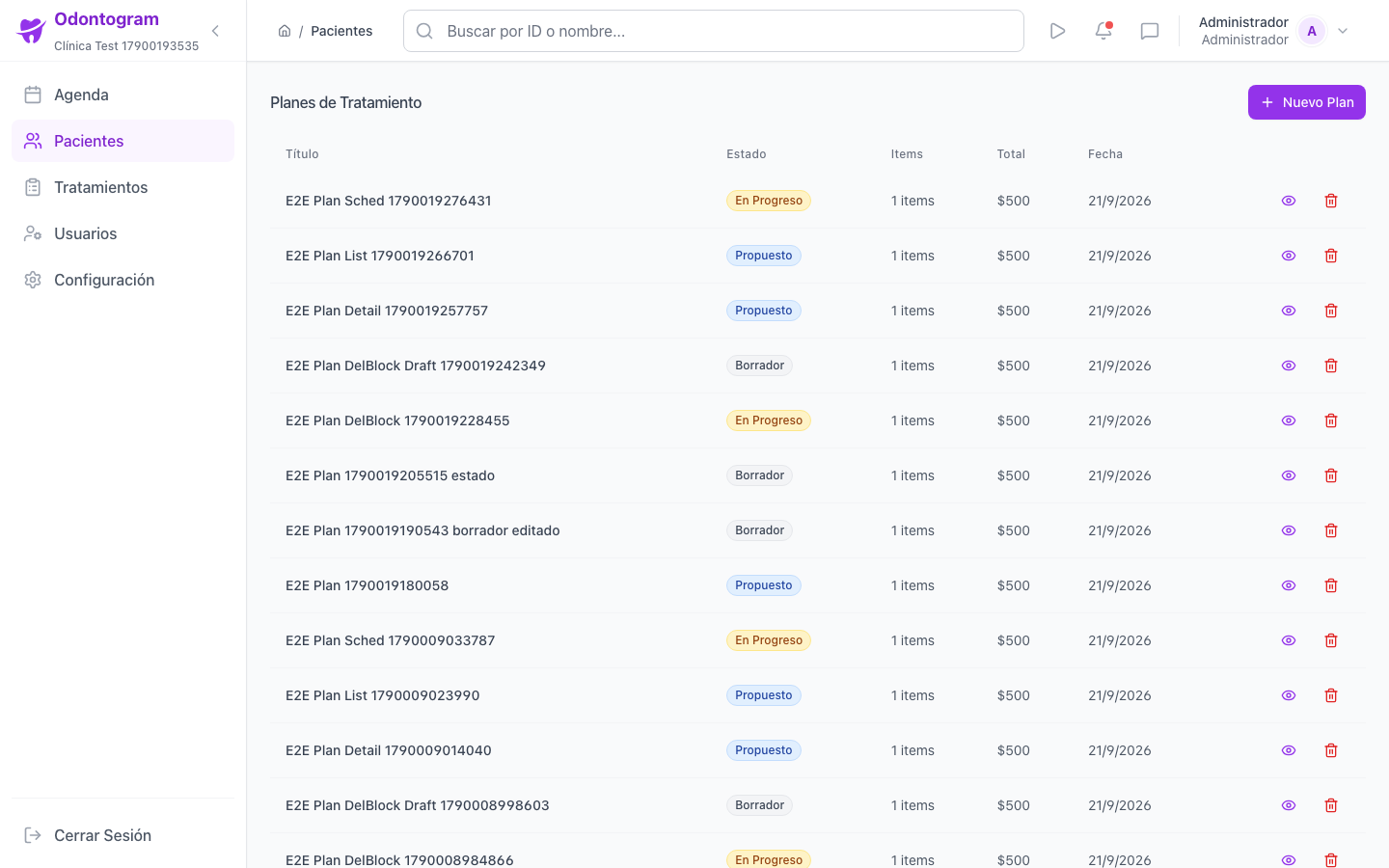
The plans module (`/patients/<id>/plans`) gathers the treatment proposals for each patient. The table shows the title, status, number of items, total, and date, and below it you will see a summary with treatment progress and the estimated total.
From here you can create a new plan, view its detail, modify it, or delete it depending on its status.
Create a treatment plan
The new plan form (`/patients/<id>/plans/new`) guides you from general information to the selection of procedures.
- Set a descriptive title and, if you wish, a description and general notes.
- Search treatments by name and add them to the plan.
- Adjust the tooth, face/surface, quantity, and unit price of each item.
- Apply a percentage or fixed-amount discount if applicable.
- Review the subtotal, savings, and total, and save the plan as a draft.
Tip
You can save the plan as a Draft and complete it later: drafts do not commit appointments or block editing.
Plan items
Each item represents a procedure within the plan and keeps the link to the treatment catalog.
- Tooth and face/surface when the treatment requires it.
- Quantity and unit price, with a minimum reference price.
- Notes per item for specific clinical indications.
- Subtotal, discount (percentage or amount), and plan total.
- Scheduled marker when the item already has an associated appointment.
Plan statuses
The plan status reflects its progress and determines which actions are available. You change it from the plan detail.
- Draft: the plan is being created and can only be deleted in this status.
- Proposed: presented to the patient, awaiting acceptance.
- Accepted: the patient approved the plan.
- In progress: some treatments are being carried out.
- Completed: all treatments finished.
- Canceled: the plan was stopped.
Information
In advanced statuses editing is limited: you cannot add items or change prices, to preserve the accepted plan.
Schedule from the plan
You can turn plan items into appointments without leaving the module, one by one or in bulk. Items with an estimated duration let you calculate the appointment automatically.
- Open the plan detail and locate the pending items.
- Press Schedule on an item or select several to schedule in bulk.
- Confirm the date, the time, and, if applicable, the appointment notes.
- Confirm the appointment (or appointments) and verify that the item is marked as Scheduled.
Warning
To delete a plan with associated appointments you must first cancel or unlink those appointments; the system will prevent it otherwise.
Manage the plan
The plan detail lets you change status, export to PDF, switch between list and card views, and check associated appointments and metadata (doctor, creation, update, and closing dates). Deletion is only enabled for drafts and requires confirmation by typing the safety word.
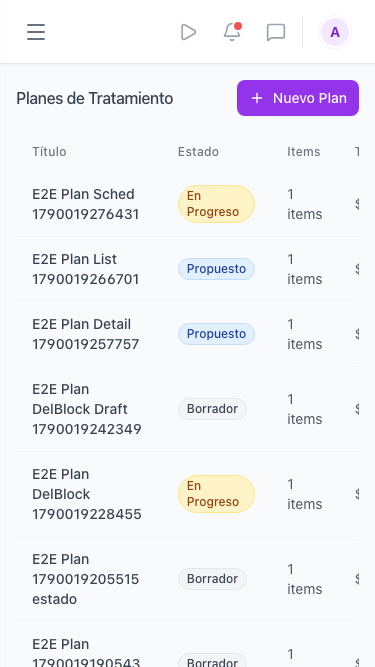
Plans on mobile
On mobile the plans are presented as stacked cards with their status and total, and the scheduling flow adapts to a single column.