Account and security
Create your account, sign in, verify your email, recover your password, and protect access with two-factor authentication.
Updated on September 21, 2026Accessing Odontogram
Your account is the gateway to the clinic in Odontogram. This section describes the complete access cycle: registration, verification, sign-in, password recovery, and the additional security layers.
Create an account
Registration (`/register`) creates your user and the associated clinic. You only need your basic details to get started.
- Enter your full name, the clinic name, and your email address.
- Set a password and confirm it; the strength indicator guides you.
- Review and accept the terms and conditions and the privacy notice.
- Press Sign up and continue with email verification.
Tip
Use a long, unique password: the system validates that it meets the security criteria before creating the account.
Sign in
From Sign In (`/login`) you access with your email and password. The Remember me option keeps your session active on this device so you do not have to authenticate again on every visit.
If your account has 2FA enabled, after the credentials you are asked for an additional verification code.
Information
Do not use Remember me on shared or reception devices; anyone with access to the computer could sign in to the account.
Verify your email
When you register we send you a 6-digit code to confirm your email address (`/verify`). The screen shows a validity timer and a button to request a new code if it expires.
- Check your inbox and find the verification code.
- Enter the 6 digits on the verification screen.
- Press Verify to activate your account.
- If the code expired, use Request new code.
Recover your password
If you forgot your password, the recovery flow lets you reset it with a code sent by email.
- On the sign-in screen press Forgot your password? (`/forgot-password`).
- Enter your email and request the code.
- Continue to verification and enter the code you received.
- Set and confirm your new password on the reset screen.
- Sign in again with the new password.
Warning
The new password must be at least 12 characters long and include uppercase, lowercase, a number, and a special character.
Two-factor authentication
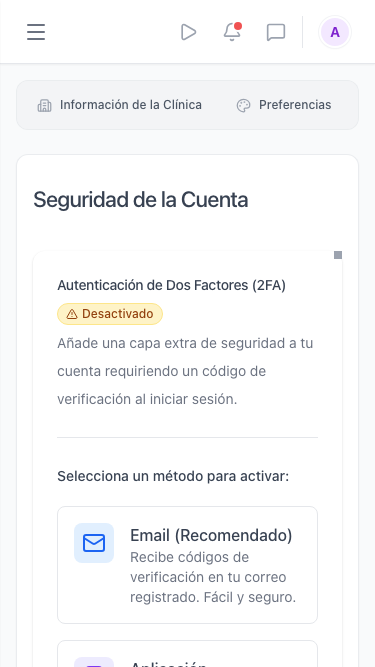
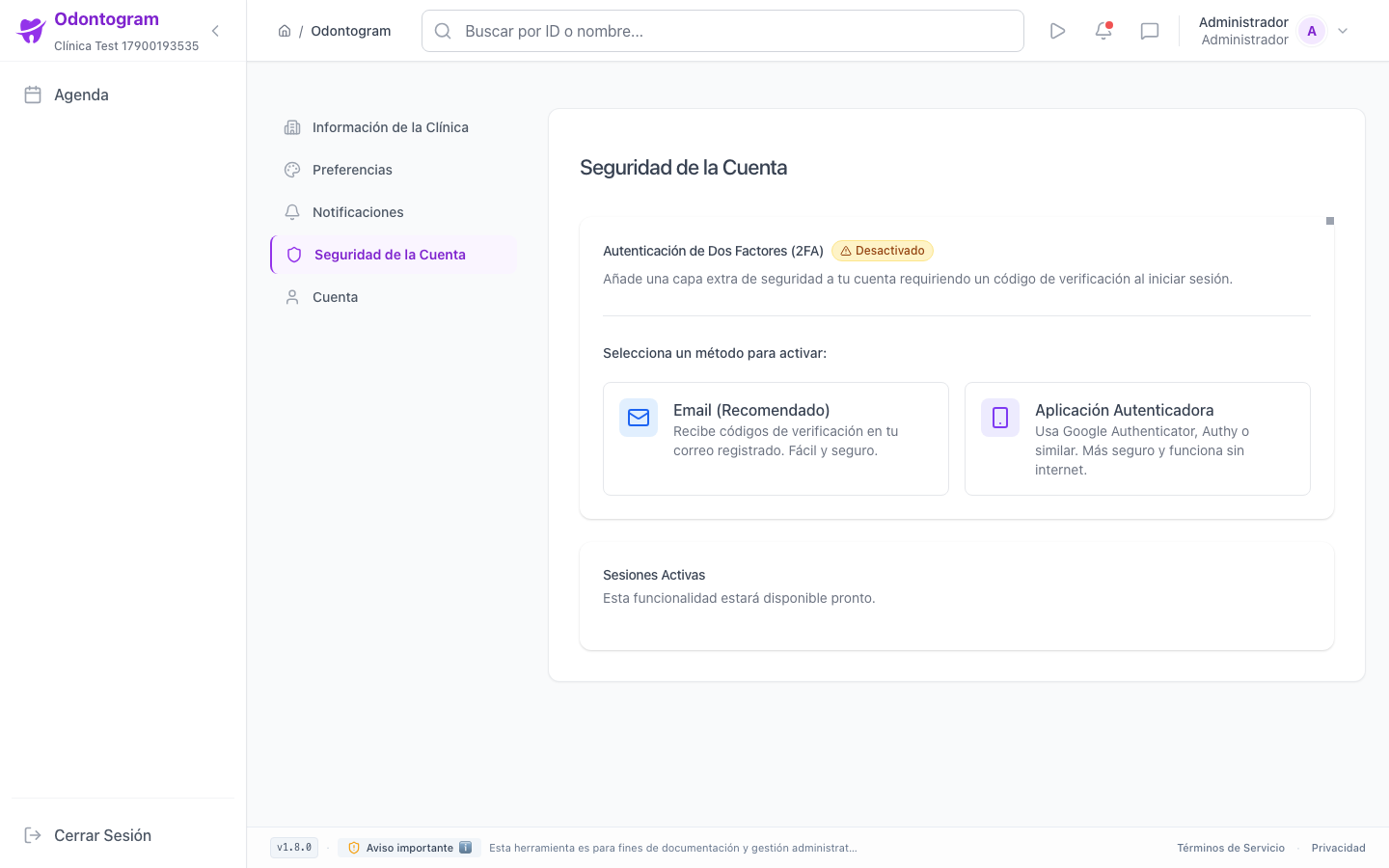
2FA adds an extra security layer to your account. It is configured from Settings → Security and you can enable it by email or with an authenticator app.
- By email (recommended): you receive a verification code at your registered address.
- By app: you scan a QR code with Google Authenticator, Authy, or similar and it works offline.
- Once enabled, every sign-in asks for the code.
- You can disable it at any time from the same screen.
Account and security on mobile
On mobile the access, verification, and recovery screens adapt to a single column, with codes that are easy to enter and buttons within thumb reach.