Users and roles
Manage the clinic team: invite users, assign roles and permissions, review their activity, and control their sessions.
Updated on September 21, 2026The clinic team
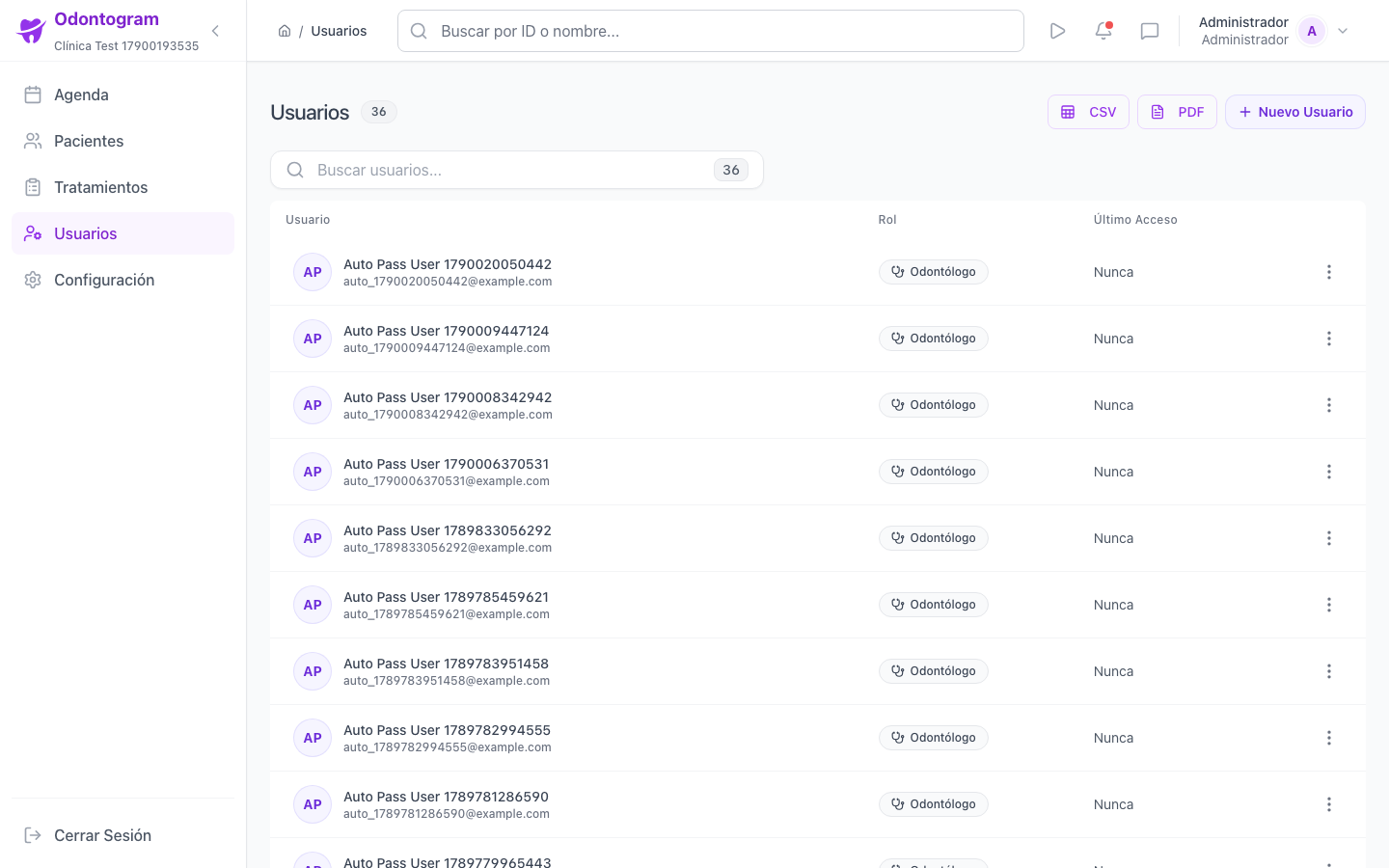
The Users module (`/users`) lists all members with their role, last access, and quick links to each one's record. Each user shows statistics such as assigned appointments, generated plans, and last activity.
From here you invite new members, edit their data and permissions, and manage their status.
Roles and permissions
Each user has a role that determines what they can do in the system. Roles are managed from Settings → Roles, where you can create custom roles with granular permissions.
- Administrator: full access to settings and team administration.
- Dentist (Doctor): focused on clinical operation, agenda, and assigned patients.
- Staff / Reception (Staff): administrative tasks such as the agenda and patient registration.
Information
System roles cannot be deleted; to adjust their scope, create a custom role with the permissions you need.
Invite and create users
Creating a user (`/users/new`) records their data, assigns a role, and defines how they will access the system for the first time.
- Enter the full name and a valid email address.
- Select the assigned role.
- Choose between automatically generating a secure password and emailing it, or setting a temporary password.
- Set the initial status of the account (enabled or disabled).
- Save to create the user.
Tip
If you generate the password automatically, it is emailed to the user. If you set it manually, share it through a secure channel.
Manage the team
The list lets you filter by role, status, connection, and last access, and sort the information to quickly find who you are looking for.
- Status filters: active, inactive, or deleted.
- Last access filters: last 7 days, last 30 days, or never accessed.
- Editing the user's data and permissions.
- Password reset with closing of active sessions.
- Viewing and closing active sessions per device.
- Exporting the list to CSV and PDF.
User status and removal
You can enable or disable accounts and delete users when they are no longer part of the team. Disabling an account stops the user from signing in without losing their history. Deleting cannot be undone.
Warning
Disabling is preferable to deleting: it keeps the appointments and plans associated with the user so the clinical history is not broken.
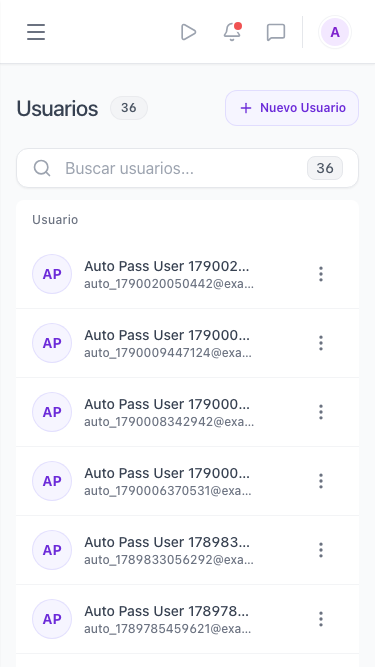
Users on mobile
On mobile the team is shown in cards with the role and last access, and administration actions stay accessible from each member.