Agenda
View and organize all clinic appointments in day, week, and month views, with filters by doctor and quick appointment creation.
Updated on September 21, 2026The clinic schedule
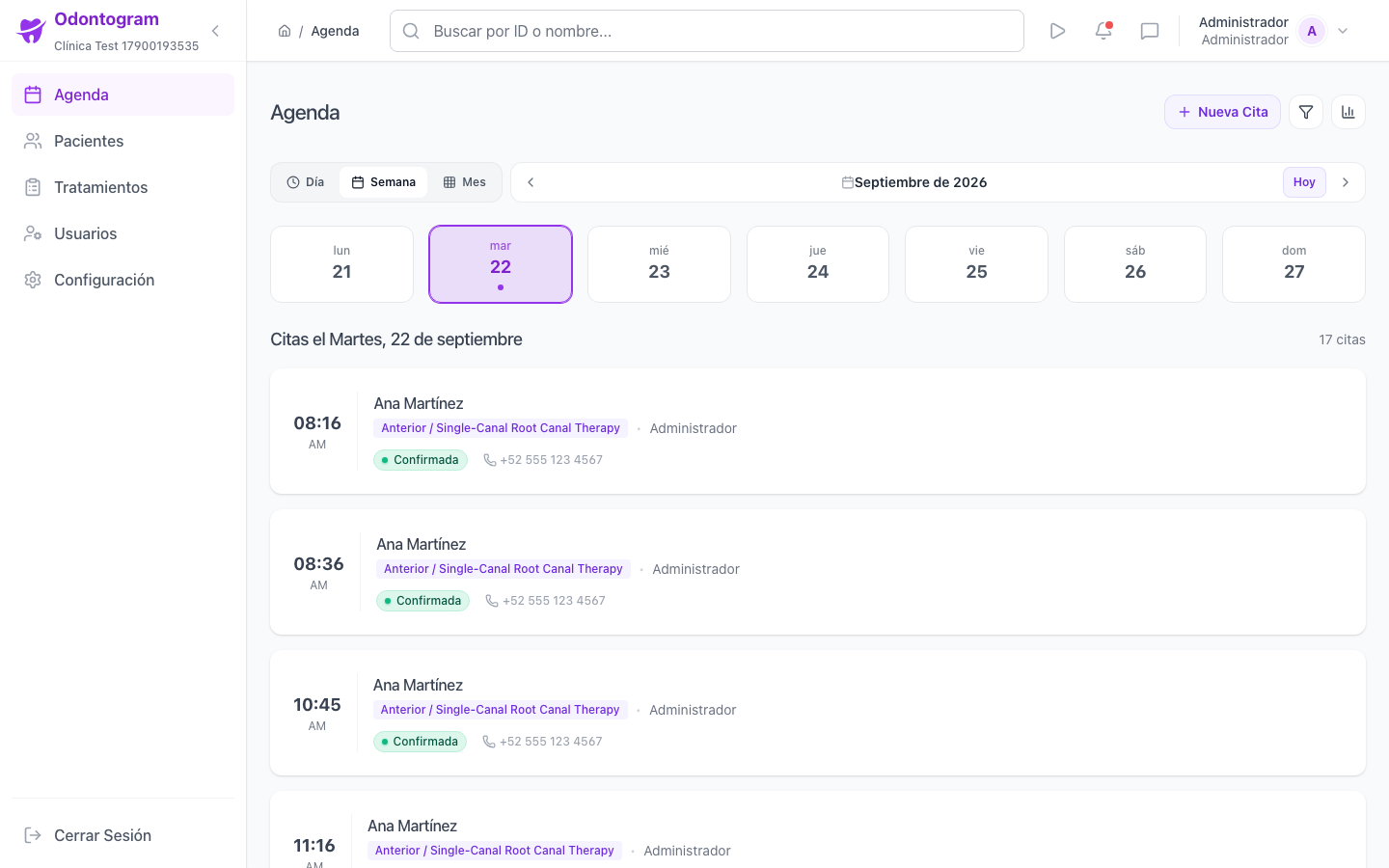
The agenda is the home screen of Odontogram (`/dashboard`) and the operational center of your day-to-day work. Here you can see scheduled appointments, their status, and the assigned doctor, along with a summary of total patients, appointments for today, pending appointments, and treatments.
Each appointment shows the time, the patient, the planned treatment, and a color based on its status, so you can identify what is confirmed, pending, and canceled at a glance.
Day, week, and month views
You can change the density of the agenda depending on what you need to review. Use the view selector at the top to switch between Day, Week, and Month.
- Day view: ideal for running the practice, with the detail of each appointment by hour.
- Week view: lets you plan the workload and spot gaps.
- Month view: gives you an overview of the month's occupancy and the busiest days.
Tip
Set your preferred initial view (day, week, or month) in Preferences so the agenda opens directly in the format you use most.
Filter the agenda by doctor
When several dentists work in the same clinic, the doctor filter lets you see only one professional's agenda or review the whole team.
- All doctors: shows appointments for every professional.
- Specific doctor: limits the view to appointments assigned to that user.
- Unassigned: shows appointments that do not have a doctor yet so you can distribute them.
Create an appointment
You can book an appointment from the New Appointment button in the agenda (`/appointments/new`). If the patient does not exist yet, the same form lets you register them on the spot.
- Choose an existing patient or enable New Patient and enter their basic details.
- Select the date and time of the appointment.
- Enter the treatment or reason and, if you wish, a note.
- Assign a doctor or leave the field empty so it is assigned to the current user automatically.
- Review the initial appointment status and press Save Appointment.
Warning
If an appointment already has treatments associated from a plan, cancel it from the plan to keep the item statuses in sync.
Appointment statuses
The status reflects the point in the appointment lifecycle and can be updated from the appointment detail.
- Pending: the appointment was created and is not confirmed yet.
- Confirmed: the patient confirmed attendance.
- Completed: the appointment was attended.
- Canceled: the appointment was voided; canceling asks for a reason.
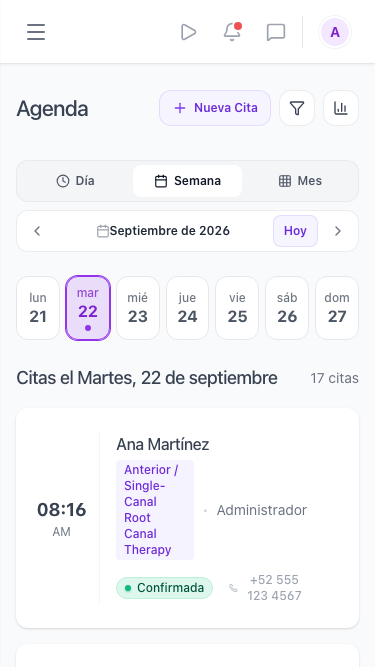
Agenda on mobile
On small screens the agenda rearranges the information into a compact day view, with appointments stacked and a shortcut to create a new appointment.