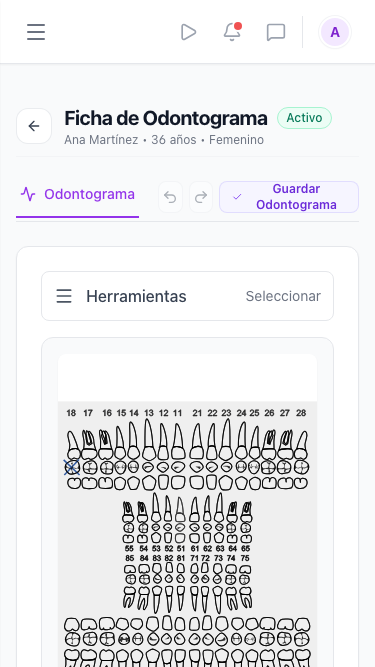
Odontogram
Record the patient's oral status tooth by tooth, mark conditions and surfaces, and keep a versioned history of changes.
Updated on September 21, 2026The digital odontogram
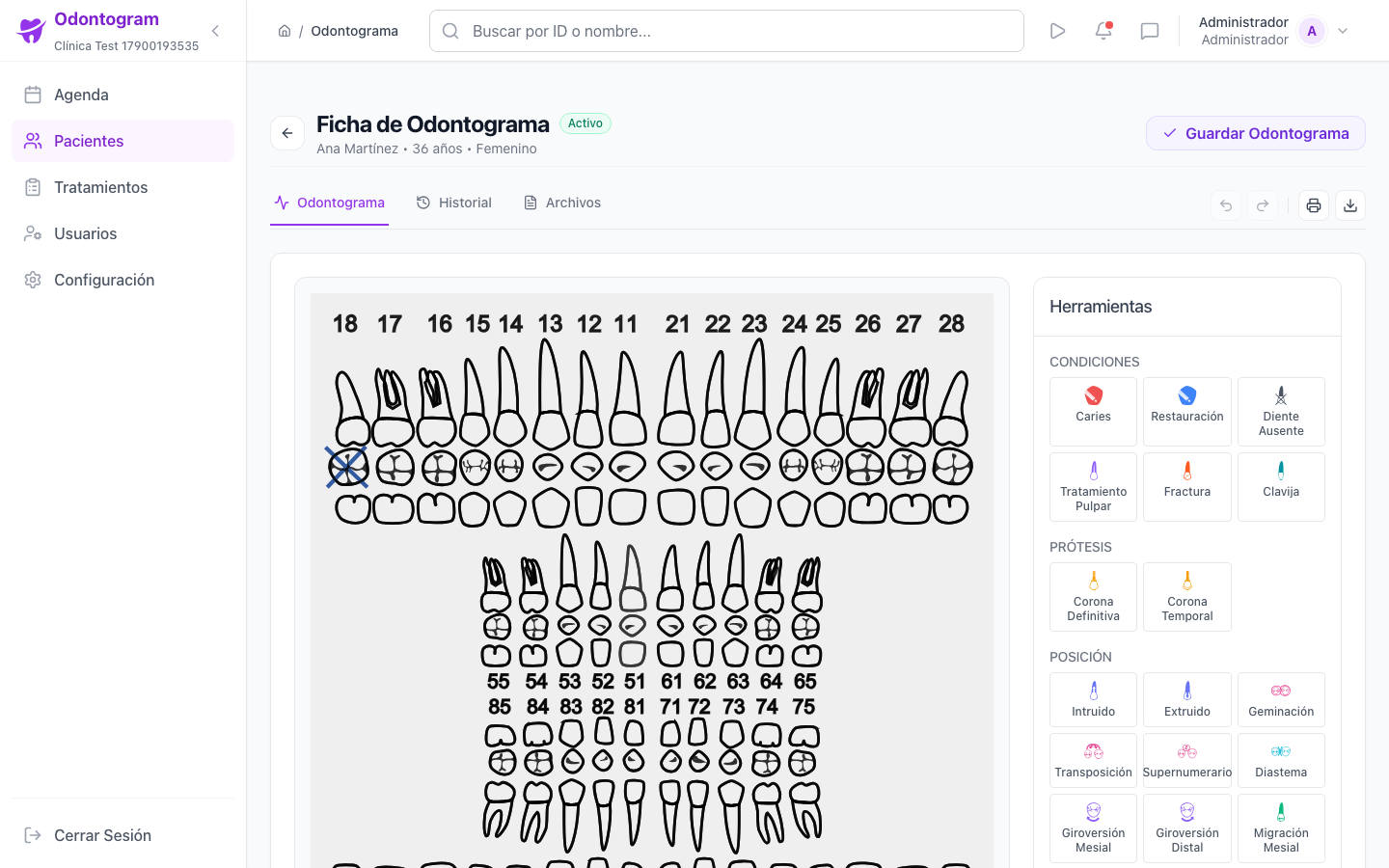
The odontogram (`/patients/<id>/odontogram`) is the graphic representation of the patient's dentition. On it you record findings and treatments per tooth, and every save creates a new version in the history.
The top bar offers Undo, Redo, Print, Export, and Save Odontogram actions, plus the Odontogram, History, and Files tabs.
Interact with a tooth
First select a tool in the side panel and then click the tooth to apply it. If no tool is active, the system asks you to choose one before marking.
The tooth tab shows its current conditions and, when the tool requires it, the surface selector.
- Choose a tool in the Conditions, Prosthesis, or Position category.
- Click the tooth (or the specific surfaces, if the tool allows it) to apply or remove the condition.
- Review the list of the tooth's current conditions.
- Add clinical notes if you need to document observations.
- Save the odontogram to create a new version.
Tip
Enable the Select tool to check a tooth's detail without modifying its status.
Conditions and findings
Conditions describe what you observe on each tooth. They are grouped into three categories for quick access.
- Conditions: cavities, restoration, missing tooth, permanent or temporary crown, pulpal treatment, and fracture.
- Prosthesis: post and prosthetic procedures.
- Position: intruded, extruded, gemination, transposition, supernumerary, diastema, mesial/distal rotation, and mesial/distal migration.
Information
When you apply an incompatible condition, Odontogram can remove the conflicting conditions and ask you to confirm before continuing.
Surfaces and clinical notes
Many conditions affect only one face of the tooth. The surface selector lets you mark or unmark the affected areas based on their orientation, and clinical notes store general observations about the patient's oral status.
Summary and statistics
The summary panel outlines the state of the odontogram without having to count tooth by tooth.
- Total teeth, treated, missing, healthy, and with cavities.
- Restorations, prostheses, and position anomalies.
- Distribution of dental status and condition count by type.
- Totals of treated teeth and detected cavities.
History and versions
Every save creates a version with a date and an optional note, so the clinical evolution is documented and auditable.
- Open the History tab to see previous versions.
- Press Compare to set the previous version against the new one and see additions, removals, and changes.
- Review the detail of changes per tooth before and after.
- Restore a version if you need to return to a previous state.
Warning
Restoring a version discards unsaved changes in the current odontogram. Save first if you want to keep them.
Odontogram on mobile
On mobile the editor keeps the dental chart navigable and moves the tools and summary into panels so you can mark conditions with touch precision.